Getting started
Crontastic runs your scheduled jobs from the menu bar, records every Run, and catches up on what it missed while your Mac slept. This page gets you from download to a first Job.
Install
- Download Crontastic. It needs macOS 14 or later, and runs on Apple silicon and Intel Macs.
- Open the disk image and drag Crontastic to your Applications folder.
- Open Crontastic from Applications.
Crontastic lives in the menu bar. It has no Dock icon. It opens at login by default, so your Jobs keep their Schedules after a restart; you can turn that off in Settings with “Open Crontastic at login”.
There's no account to make. You can schedule 5 Jobs with unlimited Runs, for free, with every feature; see Pricing for the license.
The Welcome window
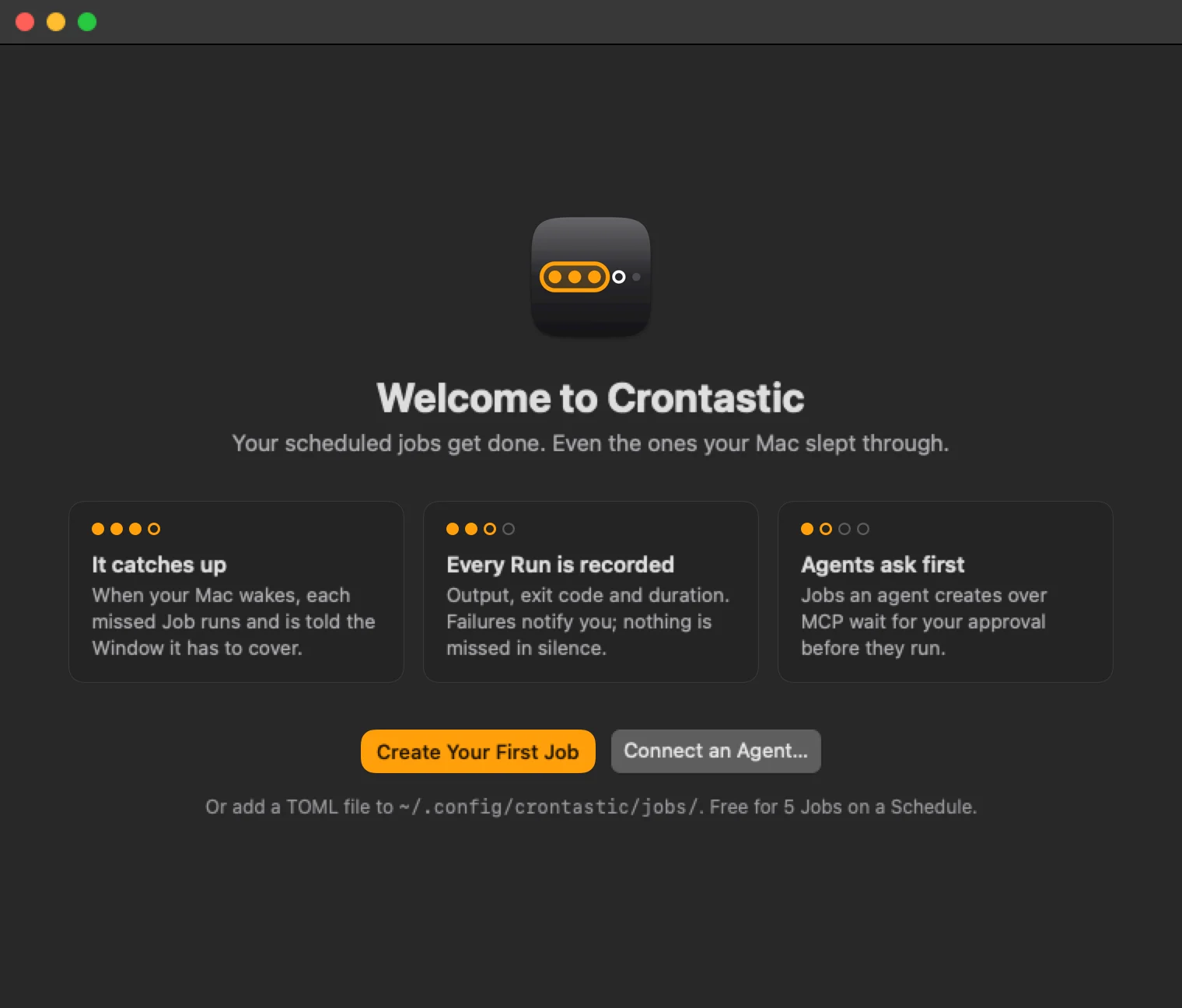
On a first launch with no Jobs, Crontastic shows the Welcome window once. It has two buttons:
- Create Your First Job opens the Job editor.
- Connect an Agent… opens For AI agents, which explains how to let Claude Code and other MCP clients manage Jobs.
Make a first Job in the app
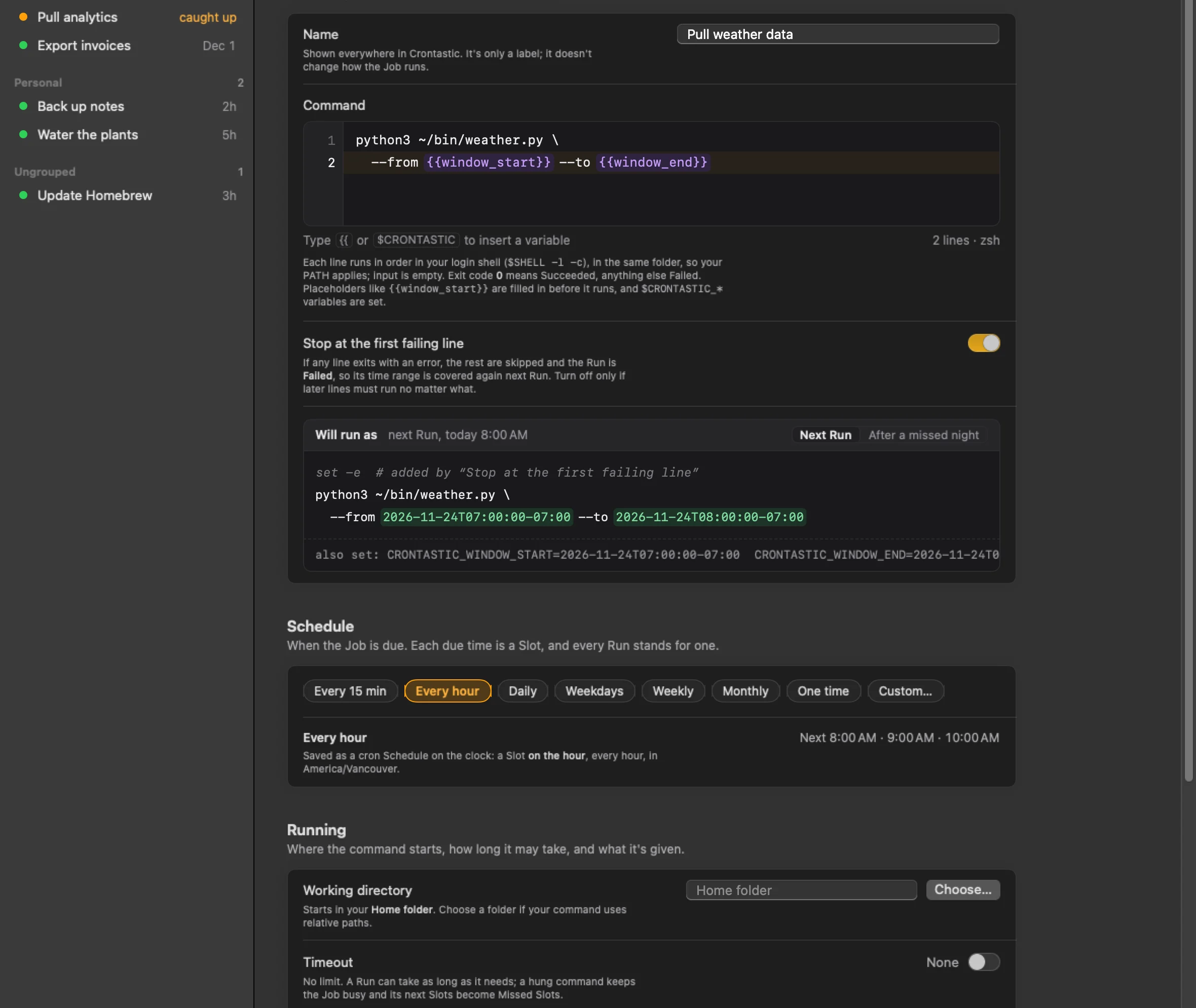
A Job is a named command plus a Schedule. In the Crontastic window, press ⌘N or click New Job at the bottom of the sidebar. For something that runs once at a set time, such as a reminder, press ⌘⇧N for a New One-time Job.
- Name. A label shown everywhere in Crontastic. It doesn't change how the Job runs.
- Command. One or more lines, run in your login shell. Type
{{or$CRONTASTICto insert a Run Context variable, such as the start of the Run's Window (the run window, as the rest of this site calls it). - Stop at the first failing line. On by default for new Jobs: if any line fails, the rest are skipped and the Run is Failed.
- Schedule. Pick Every 15 min, Every hour, Daily, Weekdays, Weekly, Monthly, One time, or Custom for your own cron expression. The editor shows the next Slots.
- Running. Optional: a working directory (your home folder if unset), a timeout, a time zone, extra environment variables and an env file.
Use Test Run in the editor to try the command with a real Run Context before you save. A Test Run really executes, but it isn't counted in history and doesn't move the Window. Press ⌘S to create the Job.
Or write the Job as a file
Every Job is a TOML file in ~/.config/crontastic/jobs/. Crontastic watches the folder, so a file you add or edit is picked up without a restart. This file makes the same kind of hourly Job:
# ~/.config/crontastic/jobs/pull-metrics.toml
name = "Pull metrics"
cron = "0 * * * *"
command = '''
~/bin/pull-metrics \
  --since "$CRONTASTIC_WINDOW_START" \
  --until "$CRONTASTIC_WINDOW_END"
'''
On first load Crontastic adds a stable id line to the file, so the Job keeps its history if you rename the file. Jobs made in the app are written to the same folder, so you can read them, edit them and keep them in git.
A file Crontastic can't read is shown as a Broken Job with the reason, such as an unknown key, and never runs until it's fixed. Every key is listed in Schedules and Job files.
What the menu bar shows
Click the menu bar icon for a summary:
- Jobs that need you: failed or timed-out Runs, Jobs waiting for your approval, and broken files. When nothing does, it says “All Jobs healthy”.
- Caught up this morning: Jobs that ran a Catch-up Run, with how many Slots they missed.
- Up next: the next Jobs to run, with a countdown.
- Pause All, Settings (⌘,), Open Crontastic (⌘O) and Quit Crontastic (⌘Q).
The Overview
Open Crontastic for the main window. Its Overview starts with one line, such as how many Jobs need you and what runs next, then:
- a card for each Job that needs you, with the action it needs (Show, Approve, Delete);
- Today, a timeline of the day's Runs, including when the Mac was asleep;
- Up next, and your One-time Jobs: those still to come, and the last few that ran or were missed.
The sidebar lists every Job, by Group. Select one to see its Runs: each with its Trigger, Outcome, exit code, duration, the Window it covered, its output, and the PATH it started with.
5 Jobs free, with unlimited Runs
In the free version you can schedule 5 Jobs, with unlimited Runs and no time limit. Paused Jobs, Jobs Pending Approval and One-time Jobs that are done don't count. A Job past the limit isn't blocked: you can still run it by hand and test it, and its Missed Slots are caught up by its Catch-up Policy once a license is activated in Settings › License, or once another Job is paused or deleted. A license is a one-time purchase. See Pricing.
Where to go next
- Schedules and Job files: cron, intervals, One-time Jobs, and every key a Job file accepts.
- Catch-up and the Window: how a Run learns what it missed, and how to write Scripts for it.
- Environment and PATH: why a command that works in Terminal might not on a Schedule, and the fix.
- For AI agents: connect Claude Code, approve what agents schedule, and make agent Jobs fail properly.