For AI agents
Crontastic has an MCP server, so Claude Code, Codex and other agents can list, create, change and run Jobs. Anything an agent creates, or whose command it changes, waits for your approval before it runs.
Connect Claude Code
Run this once in Terminal:
claude mcp add --scope user crontastic -- \
  /Applications/Crontastic.app/Contents/MacOS/crontastic-mcp
The same command is in Crontastic's Settings › Jobs, with a Copy button. --scope user makes Crontastic available in every project.
crontastic-mcp is a stdio MCP server inside the app. It talks to the running Crontastic over a Unix socket on your Mac, and opens Crontastic if it isn't running.
Other MCP clients
Clients that take a JSON config use the same program, with no arguments:
{
  "mcpServers": {
    "crontastic": {
      "command": "/Applications/Crontastic.app/Contents/MacOS/crontastic-mcp"
    }
  }
}
For Codex, add it to ~/.codex/config.toml:
[mcp_servers.crontastic]
command = "/Applications/Crontastic.app/Contents/MacOS/crontastic-mcp"
Tools
| Tool | What it does |
|---|---|
list_jobs | Every Job with its status, Schedule, next Slot and last Outcome |
get_job | One Job in full, its next 5 Slots and where its Window starts |
create_job | Create a Job. It's Pending Approval. |
update_job | Change some fields of a Job |
delete_job | Delete a Job and its file |
pause_job, resume_job | Pause or resume a Job |
run_job_now | Start a Manual Run; returns the Run ID |
test_run | Test Run the saved command and wait for its Outcome, output and Run Context |
cancel_run | Cancel a Run in progress |
list_runs | A Job's recent Runs, without output |
get_run | One Run in full: output, PATH, variable names |
preview_schedule | Check a Schedule and list its next Slots |
Job statuses are active, paused, pending_approval, broken, waiting_for_license, and done for a One-time Job whose time has passed.
The server also tells agents how to write a good Job: cover the Window, make reruns safe, keep secrets in an env file, set a timeout, and check a new Job with test_run once you've approved it.
Pending Approval
A Job an agent creates is Pending Approval: it doesn't run until you approve it in Crontastic. A Job goes back to Pending Approval when an agent changes what it executes: its command, working directory, env or env_file. Renaming it or changing its Schedule doesn't.
There is no tool to approve. You approve in the app: on the Job's page, from its card in the Overview, or with Approve All… when several are waiting, which lists each Job and its command first. Crontastic also sends a notification when a Job is waiting.
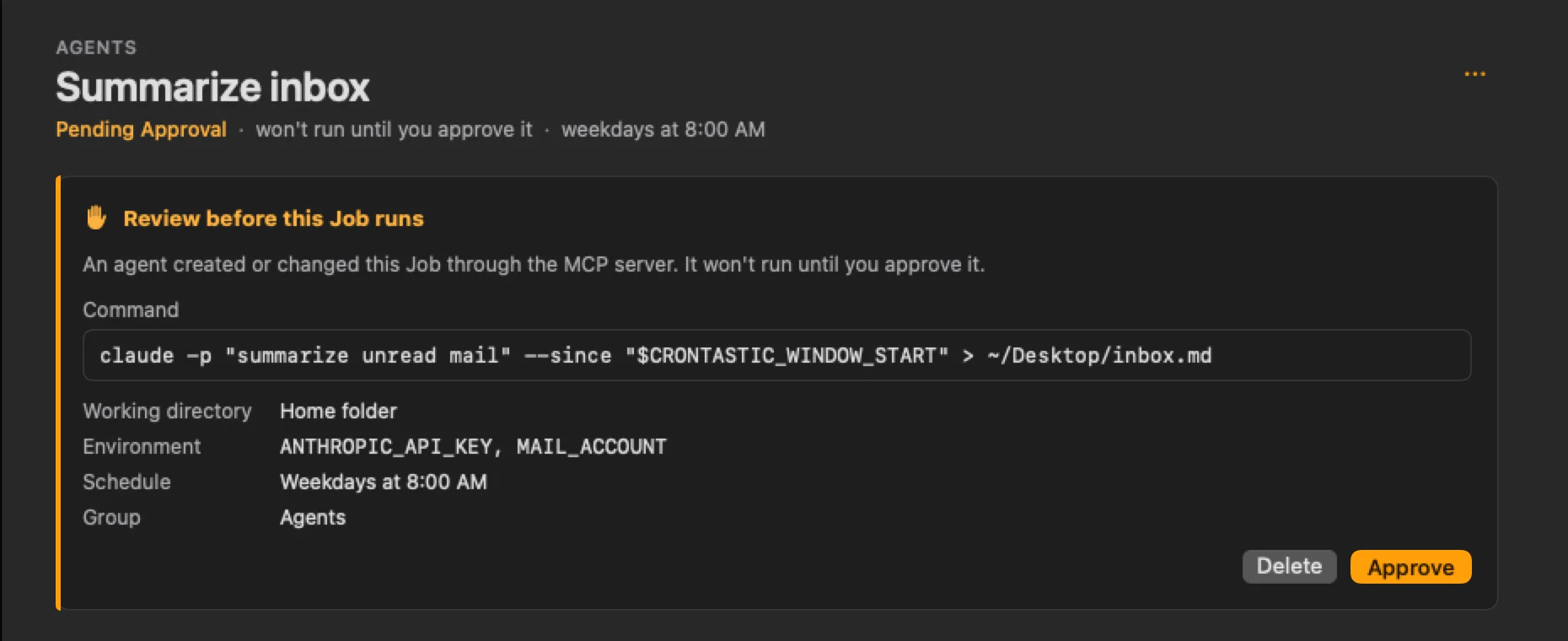
While a Job is Pending Approval, its Slots aren't Missed Slots, and run_job_now and test_run are refused. When you approve it, its Window starts fresh from then. A One-time Job approved after its time never runs, so approve those soon.
Approval guards against agents that can only reach Crontastic through MCP. It isn't a security boundary: anything that can write to ~/.config/crontastic/jobs/ can already run code as you. Deleting, pausing and resuming don't need approval. You can turn approval off in Settings › Jobs; it's on by default.
The Job Limit
The free version schedules 5 Jobs, with unlimited Runs. A Job past that has the status waiting_for_license. Agents can still create it, run it with run_job_now and test it with test_run, but its Slots are missed for now. They're caught up by its Catch-up Policy once you activate a license in Settings › License, or pause or delete another Job. The server tells the agent this, and to tell you rather than work around it.
Make agent Jobs fail properly
The exit code is the only signal Crontastic has. Exit 0 is Succeeded, and the Window moves on. claude -p exits 0 when the agent finishes its turn, whether or not it did what you asked: it may have hit a permission it didn't have, found nothing to do, or given up and said so. That Run is recorded as Succeeded, and its span is never covered again.
So don't trust the agent's exit code alone. Check for the result.
Check the file it was asked to write
The most reliable check is the work itself. Ask the agent to write its result to a file, remove any old copy first, and test that the new one exists and isn't empty:
name = "Draft standup notes"
cron = "30 8 * * MON-FRI"
catch_up = "skip"
working_directory = "~/notes"
timeout = "15m"
stop_on_error = true
command = '''
out="standup-${CRONTASTIC_SCHEDULED_AT%%T*}.md"
rm -f "$out"
git -C ~/code/app log --oneline \
  --since="$CRONTASTIC_WINDOW_START" |
  claude -p --permission-mode acceptEdits \
    "Write standup notes from these commits to $out"
test -s "$out"
'''
test -s exits 1 if the file is missing or empty, so the Run fails and the Window stays open. Where you can, check more than existence: grep -q '^## ' "$out" for a heading you asked for, or jq -e .items "$out" for JSON you expect.
Or ask for a last line, and check it
When there's no file to check, have the prompt end with a fixed last line that the agent prints only when every step worked, and test for it:
reply="$(claude -p "Triage the issues opened since \
$CRONTASTIC_WINDOW_START. When every step has
worked, end with a line that is exactly
TRIAGE-DONE. If anything failed, don't.")"
printf '%s\n' "$reply"
printf '%s\n' "$reply" | tail -n 1 |
  grep -qx 'TRIAGE-DONE'
The reply is printed so it's in the Run's output, and the last grep decides the Outcome. This is the agent's own report, so it's weaker than checking the result. Prefer the file check when there's something to check.
Keep the basics on
- Stop at the first failing line. Keep
stop_on_error = true(the default for Jobs made over MCP or in the app), so a failing step, includingclaudeitself exiting non-zero, fails the Run instead of being hidden by a later line. - Set a timeout. An agent can take far longer than you expect. A
timeoutends a stuck Run as Timed out, so the Job's next Slots aren't missed behind it. - Give it the Window. Put
$CRONTASTIC_WINDOW_STARTor{{window_start}}in the prompt, so after a night asleep the agent works on everything since the last successful Run, not just the last hour. - Pick the Catch-up Policy for the cost. Once runs the agent one time for the whole Window. Replay each runs it once per Missed Slot, which can be many agent sessions after a long sleep. Skip suits work that only matters now.
- Test it. After you approve the Job, run
test_runor Test Run in the editor and read the output before relying on the Schedule.